
How to Use Mew Cut
Mew Cut is a subtitle and voiceover tool built around automated workflows with deep Final Cut Pro integration. Use sidebar tools on their own, or save multiple steps as workflows and run them repeatedly in batch.
Speech recognition, denoise, and format conversion run on your Mac. Only subtitle validation, AI segmentation, and AI translation call an online service. Leave those steps out of your workflow, and nothing is uploaded.
Core Concepts
Mew Cut consists of three main capabilities:
-
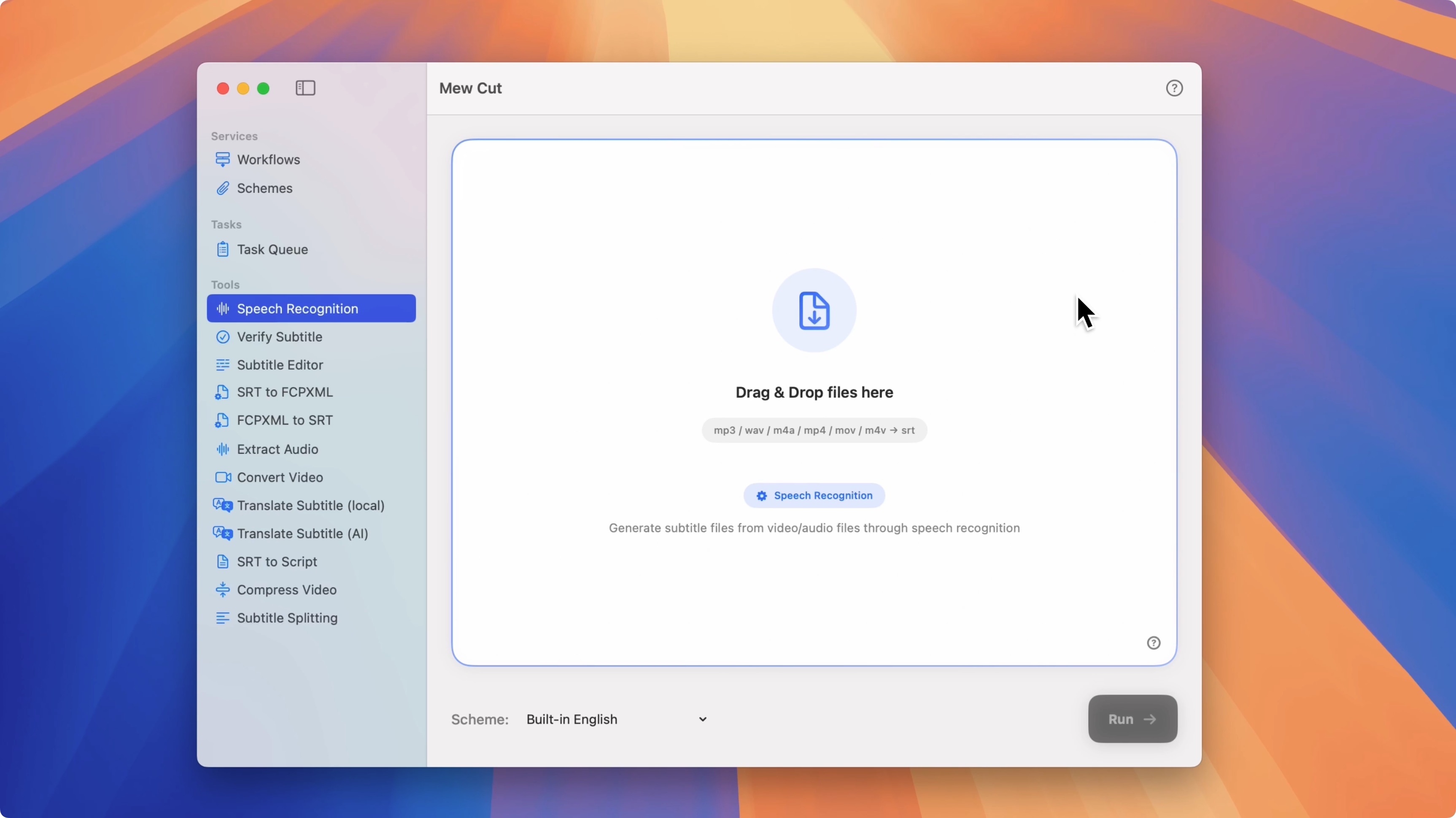
Tools: Independent utilities accessible from the sidebar, such as Speech Recognition, Extract Audio, SRT to FCPXML, etc.
-
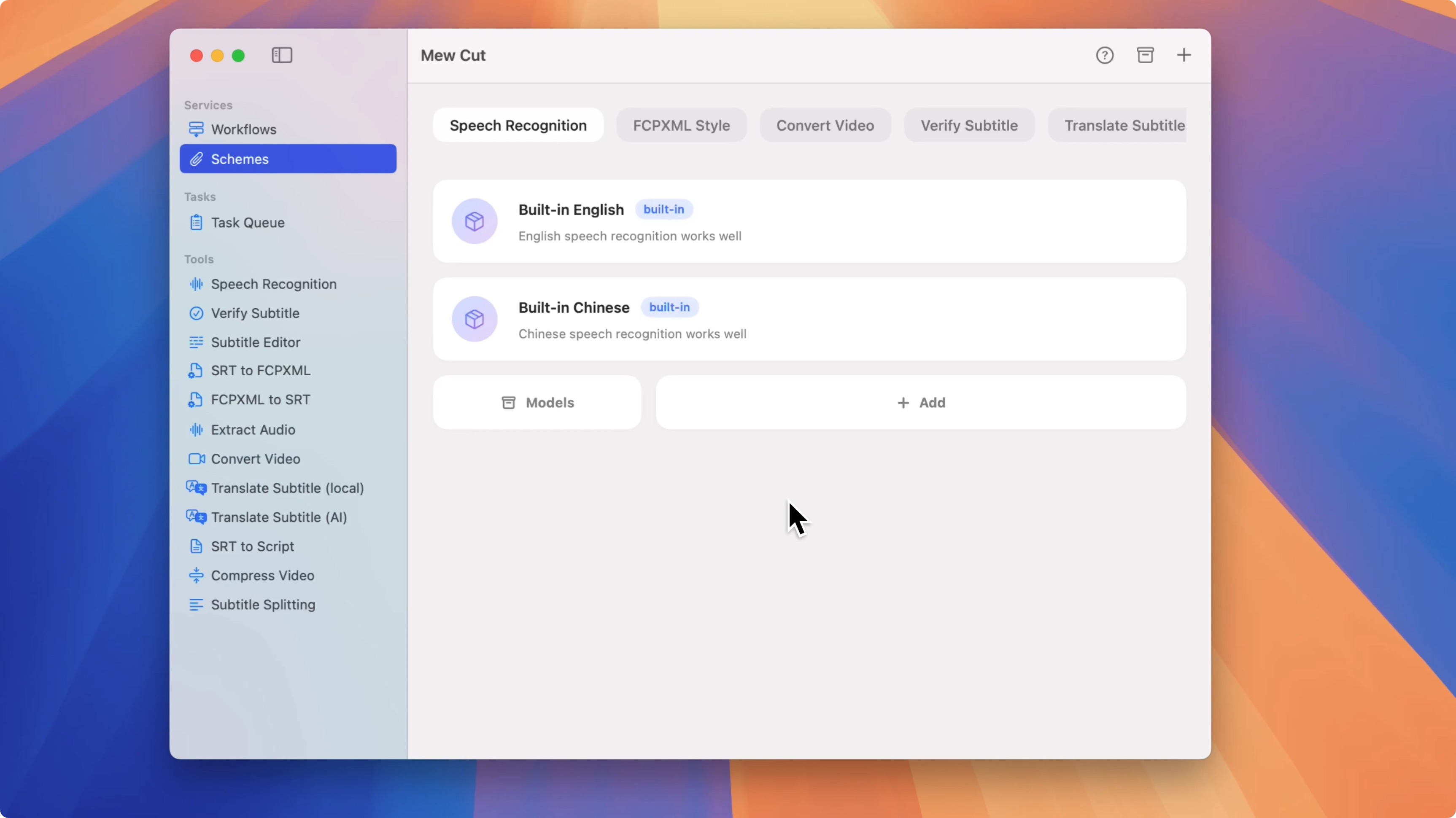
Schemes: Create tool-specific configuration presets as needed and select them at runtime.
-
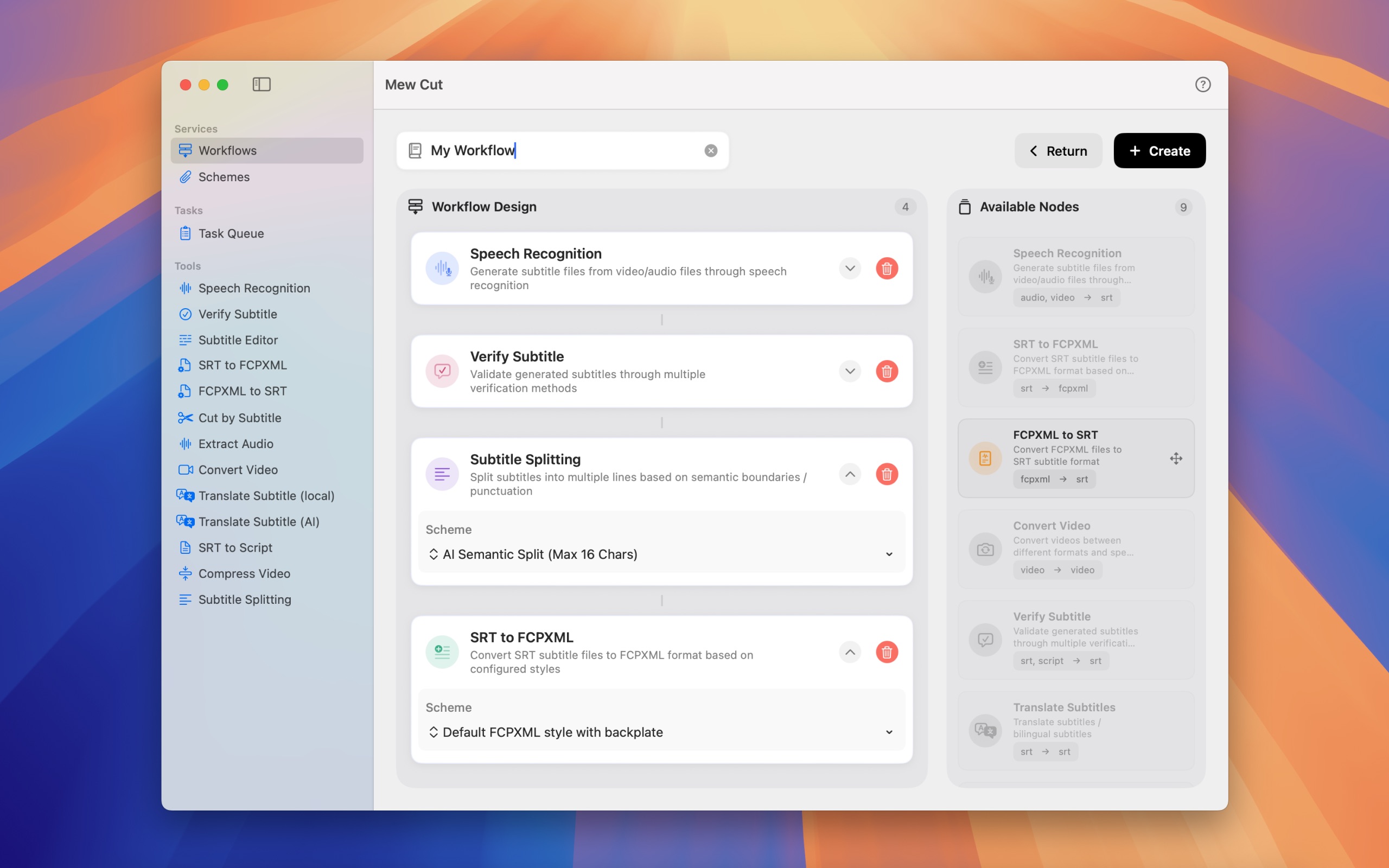
Workflows: Save multiple tools as a workflow and run the steps in order automatically.
How to Use Tools
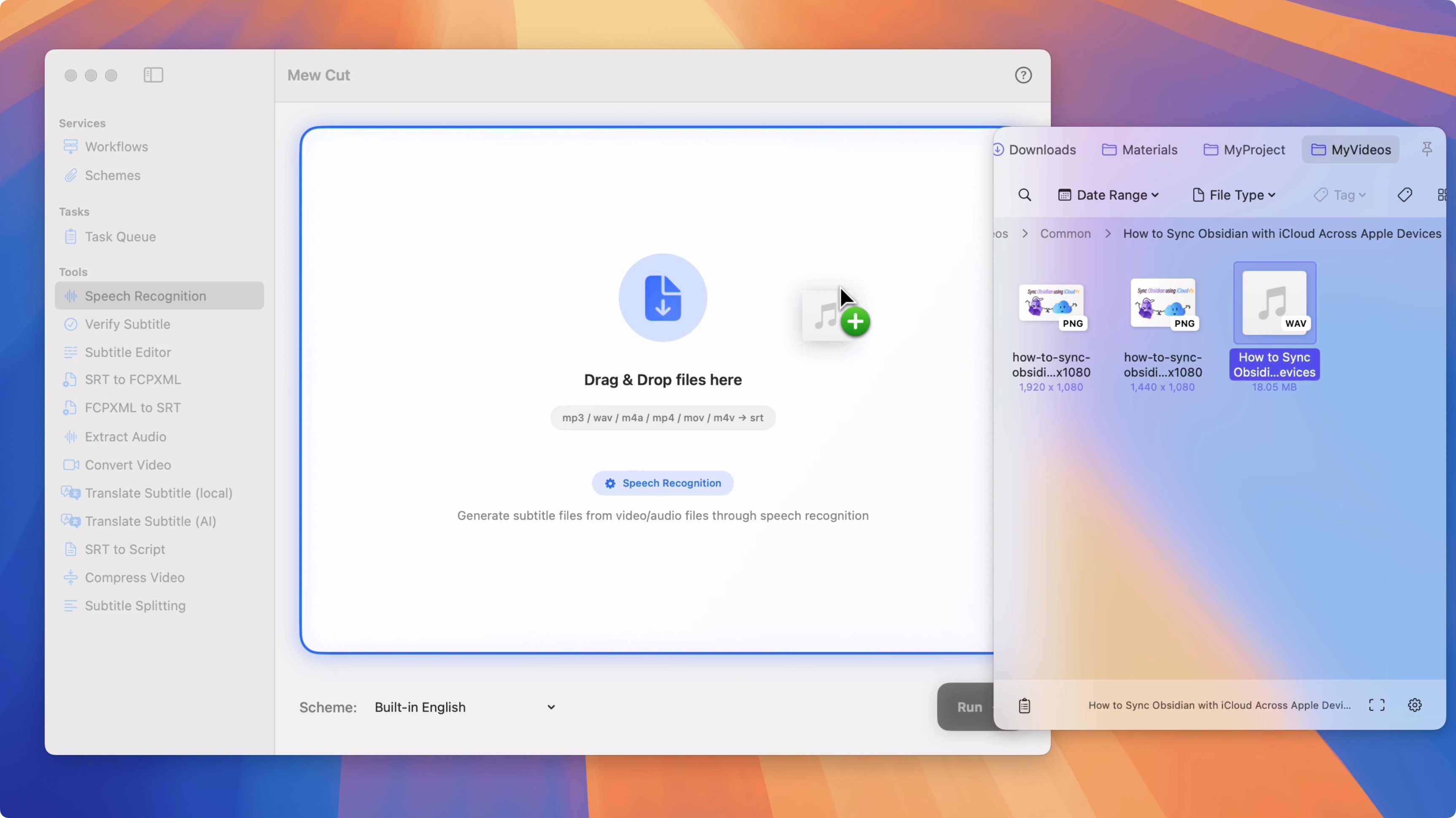
Using Speech Recognition as an example, you can complete the process in a few simple steps:
- Select the “Speech Recognition” tool from the sidebar.
- Drag the files you want to process into the processing area.
- (Optional) Choose a preset.
- Click the “Run” button. After that, wait for the execution to finish and your files will be generated. You can view progress and results for all runs on the “Task Queue” page.
How to Use Workflows
- Select “Workflows” from the sidebar.
- Create a workflow, arrange the required tools in order, and choose the corresponding presets for each tool.
- Click a workflow in the list to open its processing page.
- Drag files into the processing area.
- Click the “Run” button. After that, it works just like using a standalone tool. View all progress and results on the “Task Queue” page.
More Questions
In Mew Cut’s settings, there is a “FAQ” section listing many frequently asked questions from users, covering very specific operational details—check it out if needed! There’s also a question mark ❓ button in the top-right corner of Mew Cut that you can click to quickly view these detailed how-tos.