
Batch generate subtitles on Mac with a saved workflow
One video on the Mac is simple. Drag it in, recognize speech, export SRT, and you are done in minutes. Series shows, fixed formats, and multi-episode interviews are different. Every episode repeats recognition, proofing, and segmentation, and sometimes translation or FCPXML for Final Cut Pro. The pain is not one file. It is running the same chain many times.
The fix is to lock the steps down. Pick the recognition model, whether to validate, how to segment, and whether the output is SRT or FCPXML once. After that, each episode or each batch runs in the same order without clicking through from scratch.
One-off vs workflow
For a one-off job, a single tool is enough. Drop a file, recognize, export SRT, or convert SRT to FCPXML elsewhere.
When every episode wants the same chain, a workflow is worth it. A workflow keeps steps in a fixed order so you can reuse and batch them. Some apps also ship a Final Cut Pro plugin so the same chain runs inside FCP.
Run a workflow
Mew Cut is a Mac app for subtitle and voiceover work. The sidebar has speech recognition, denoise, translation, SRT to FCPXML, and similar one-off tools. You can also chain steps into workflows. It integrates with Final Cut Pro through a plugin. The rest of this article covers batch subtitle work in Mew Cut.
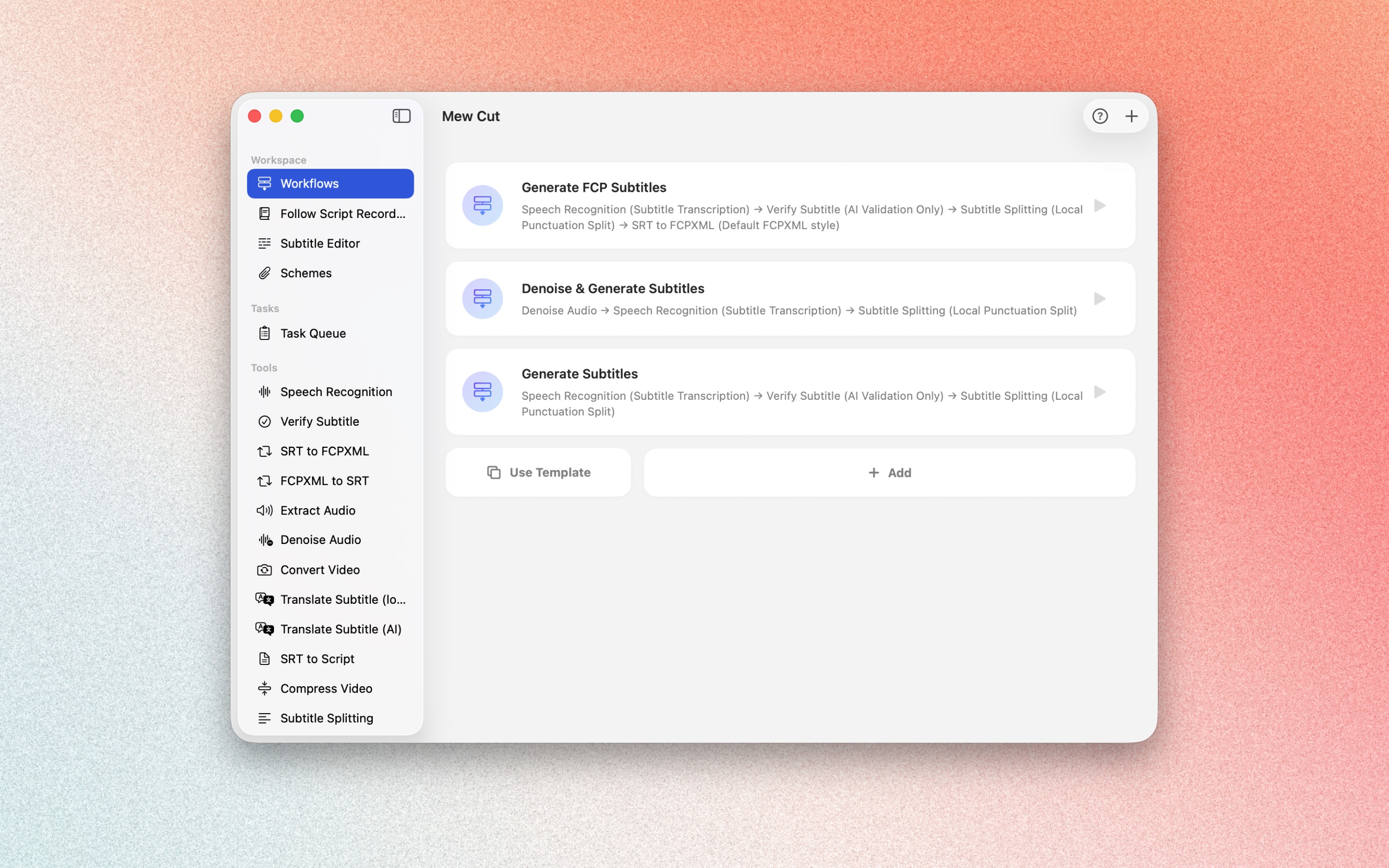
Sidebar tools accept multiple files in one drop. You can chain steps into workflows and run the same chain in the Final Cut Pro plugin. Workflows from the main app also run in the plugin. Refresh the plugin list after you save.
Mew Cut ships four common templates you can run as-is or edit. “Generate Subtitles” recognizes, validates, then segments by punctuation. “Generate FCP Subtitles” adds FCPXML export after segmentation. “Denoise and Generate Subtitles” denoises first, then recognizes and segments. “Quick Subtitles for Rough Cut” only recognizes and segments, so it stays shorter.
Use “Denoise and Generate Subtitles” when the room is noisy. Use “Generate FCP Subtitles” when you need titles in FCP. Use “Quick Subtitles for Rough Cut” when you only need captions for a rough cut.
Schemes
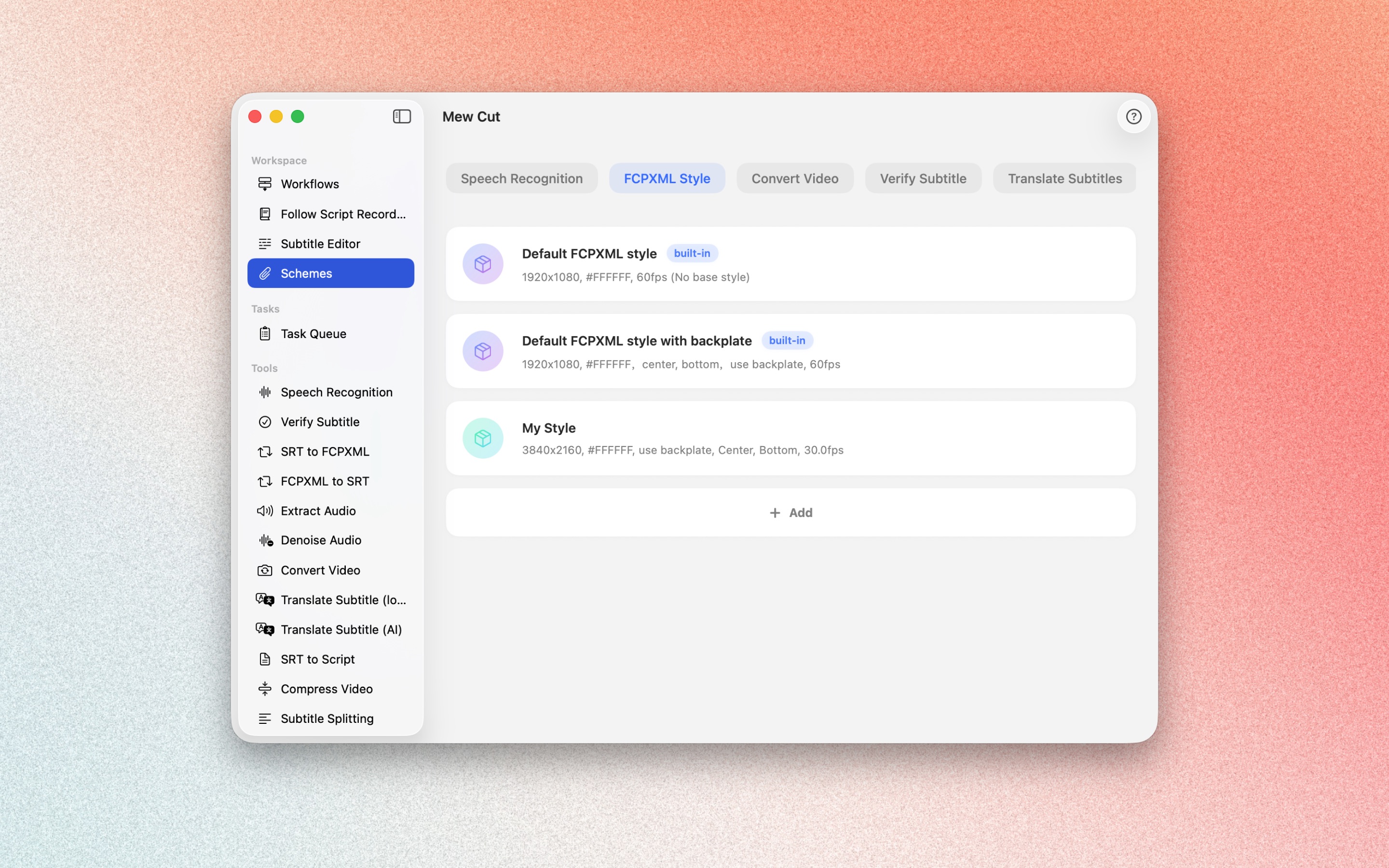
Recognition settings, validation parameters, FCPXML style, and translation options can each live in a scheme in Mew Cut. Different workflows can point to different schemes. Change a scheme once and every workflow that uses it picks up the change.
For a batch, open the workflow and drop several files at once. Watch the task queue. Use Show in Finder when a job finishes. Auto-clean is optional. Temporary files go to Trash and finished outputs stay.
Offline limits
In Mew Cut, speech recognition, denoise, format conversion, extract audio, compress, segment by punctuation, and local translation can run offline on the Mac.
Subtitle validation, AI segmentation, and AI translation need network access and online AI. Leave those steps out of the workflow and nothing is uploaded. Local recognition plus punctuation segmentation can stay fully offline.
For interviews that need speaker labels, download the speaker model and use multi-speaker recognition. Solo voiceover uses normal recognition. For other languages, add translation after recognition and segmentation, then choose monolingual or bilingual output.