
Final Cut Pro subtitles, SRT or FCPXML
If you edit voiceover or interviews in Final Cut Pro, you often prepare subtitles yourself. FCP can generate captions automatically, but Apple’s docs still limit that feature mainly to U.S. English. When that does not cover your language, or you want recognition and proofreading under your control, recognize on the Mac first, then bring SRT back onto the timeline.
Before you import anything, decide what the deliverable needs. A closed-caption track for platforms and editable title clips on the timeline are two different paths. The sections below explain both, then show how to chain recognition and import on the Mac.
Import SRT
After local speech recognition gives you SRT, choose File → Import → Captions in Final Cut Pro and bring the file in as Captions. Set format and language roles in the inspector.
This fits locked copy and platform delivery. Fix proper nouns, line breaks, and proofreading before you enter FCP. Changing words on the timeline is usually slower than fixing the SRT outside.
Convert to FCPXML
Importing SRT as Captions leaves little room for styling. If subtitles should behave like ordinary titles with your font, position, and animation, convert to FCPXML first, then use File → Import → XML.
Match frame rate and FCPXML version to the project, or timing drifts after import. Several Mac tools convert SRT to FCPXML. Unstyled FCPXML leaves font and position for FCP. You can also set the look first and export once.
Workflows and the plugin
Series voiceover and fixed formats often repeat recognition, validation, segmentation, and FCPXML export every episode. You can repeat those steps manually, or save them as a workflow and run a batch in order.
If you often handle subtitles and voiceover in FCP, Mew Cut is a Mac app built for those workflows, with a Final Cut Pro plugin. Recognition, SRT ↔ FCPXML conversion, workflows, and the plugin live in one app. The rest of this article walks through the paths above using Mew Cut.
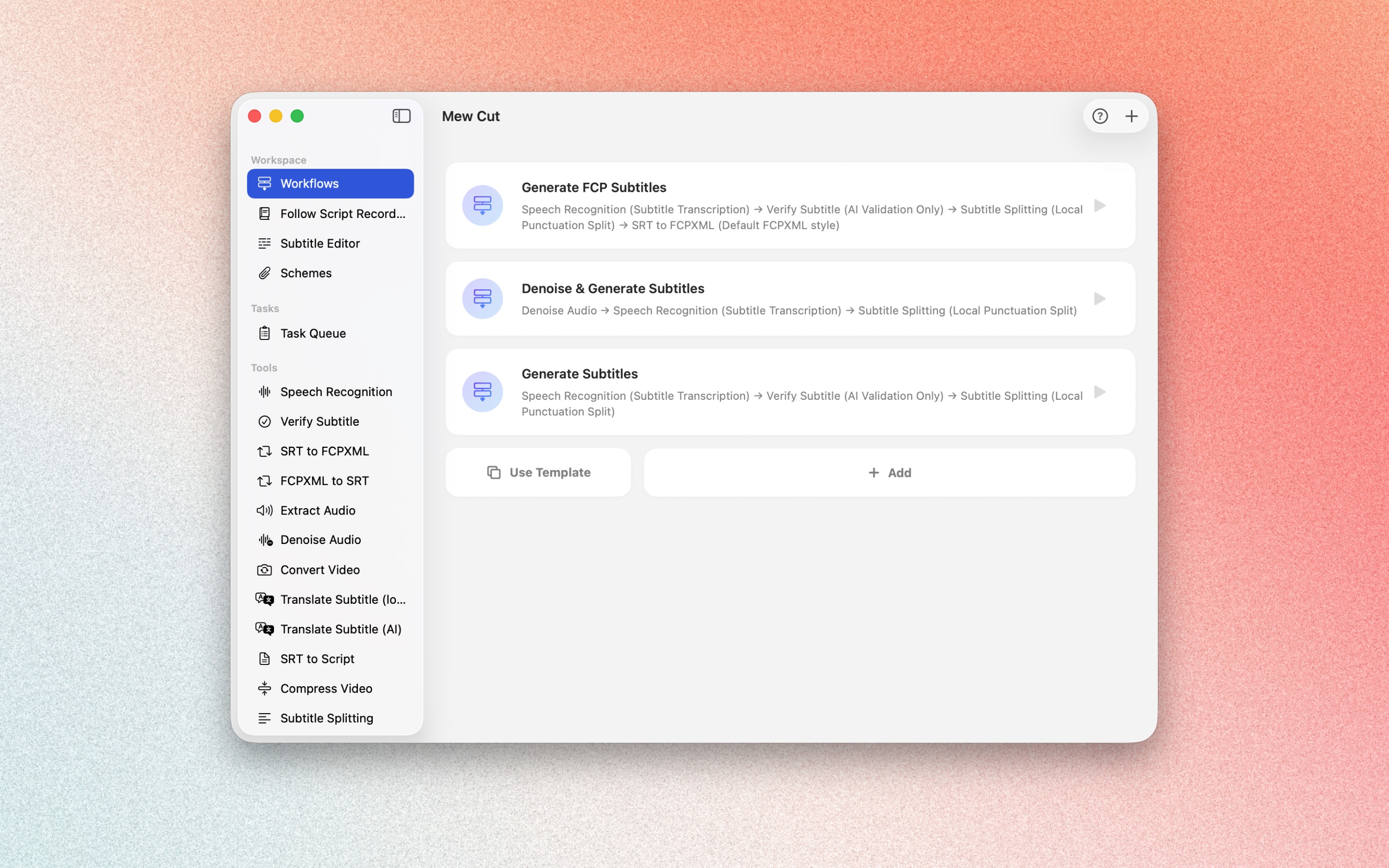
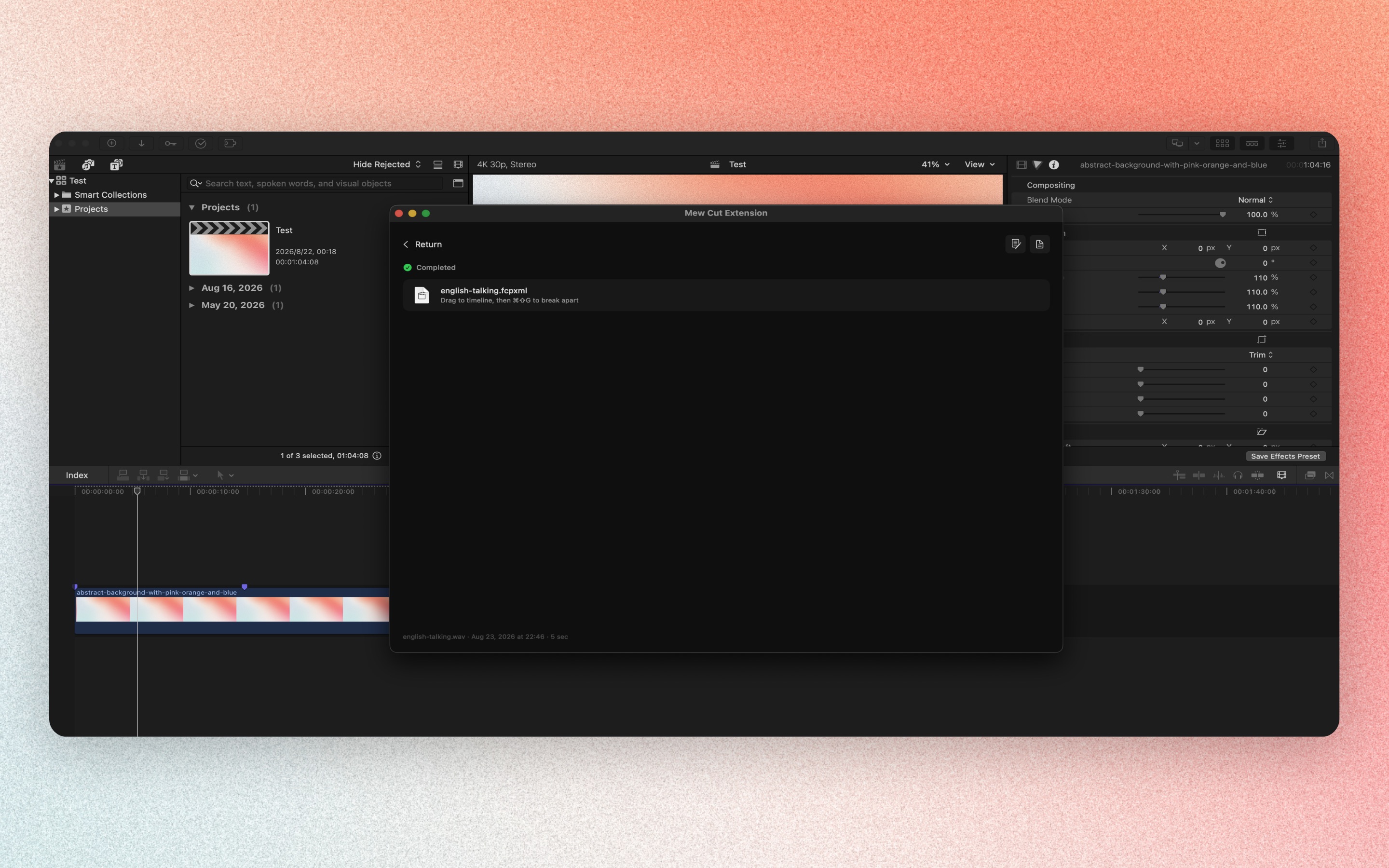
Save a “Generate FCP Subtitles” workflow in the Mew Cut main app. Open the Final Cut Pro plugin, refresh the list, select it, and run your media. Drag subtitle FCPXML onto the timeline, press ⌘⇧G, and keep styling in FCP.
If you already have SRT and only need to match an FCP project, run SRT to FCPXML alone from the Mew Cut sidebar. You do not need a full workflow. By default it exports unstyled FCPXML. You finish font and position in FCP. When the look is fixed, you can save a styled scheme instead.
The plugin list does not sync on its own. Refresh the list in the plugin after you save in the main app. SRT or script text from the plugin drops onto the timeline as ordinary files. It does not become subtitle clips on its own.
Offline limits
In Mew Cut, speech recognition and SRT ↔ FCPXML conversion can run offline on the Mac. Subtitle validation and AI segmentation need network access and online AI. Leave those steps out of the workflow and nothing is uploaded.
For noisy location audio, denoise before recognition. For interviews that need speaker labels, download the speaker model and use multi-speaker recognition. Solo voiceover uses normal recognition.