
Generate subtitles on Mac with local speech recognition
Mew Cut turns video or audio into SRT subtitles on your Mac using local speech recognition. Files stay on the device, and you can process them in batches.
How to generate subtitles on Mac
-
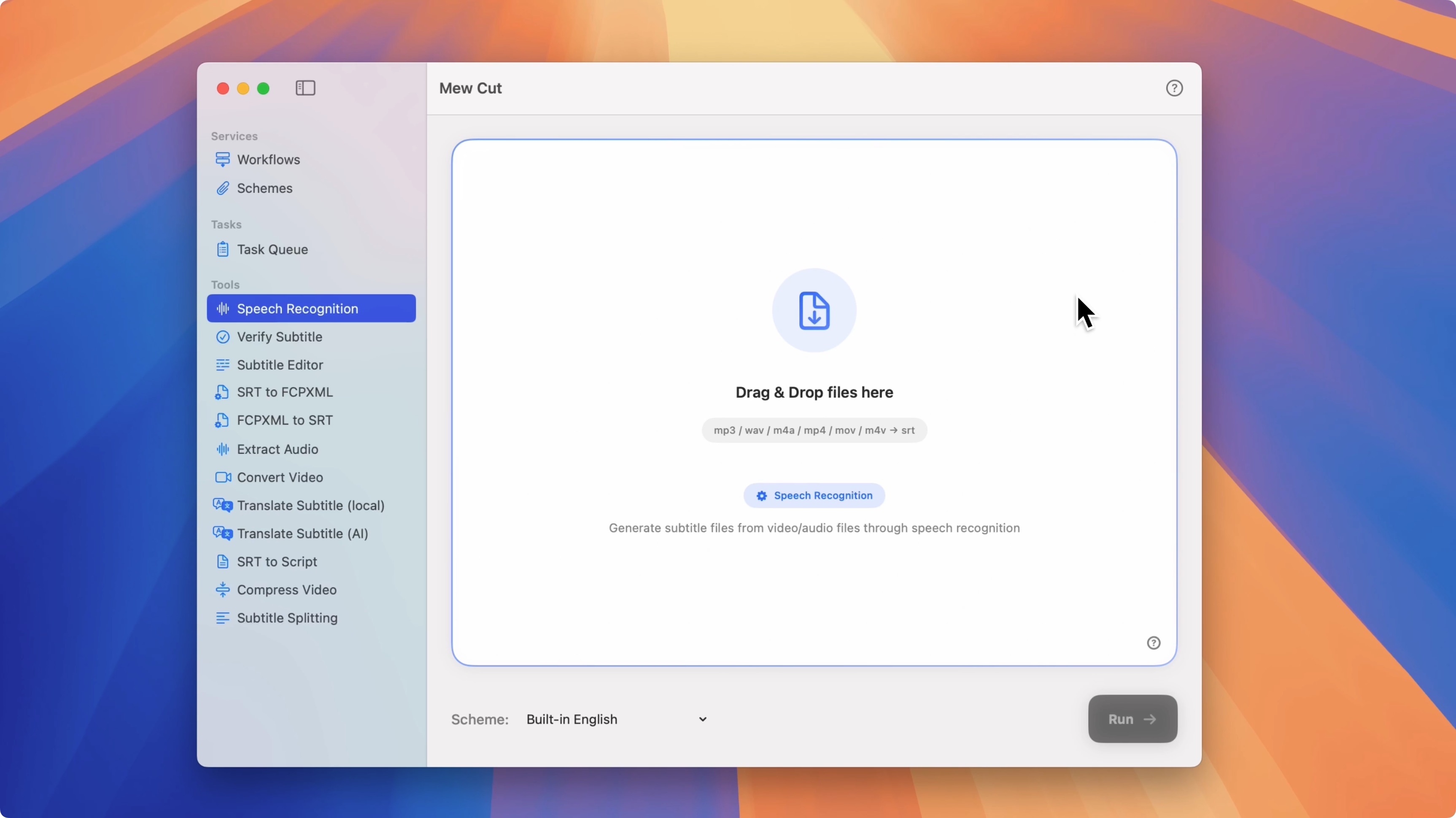
Open the Speech Recognition tool in the sidebar
-
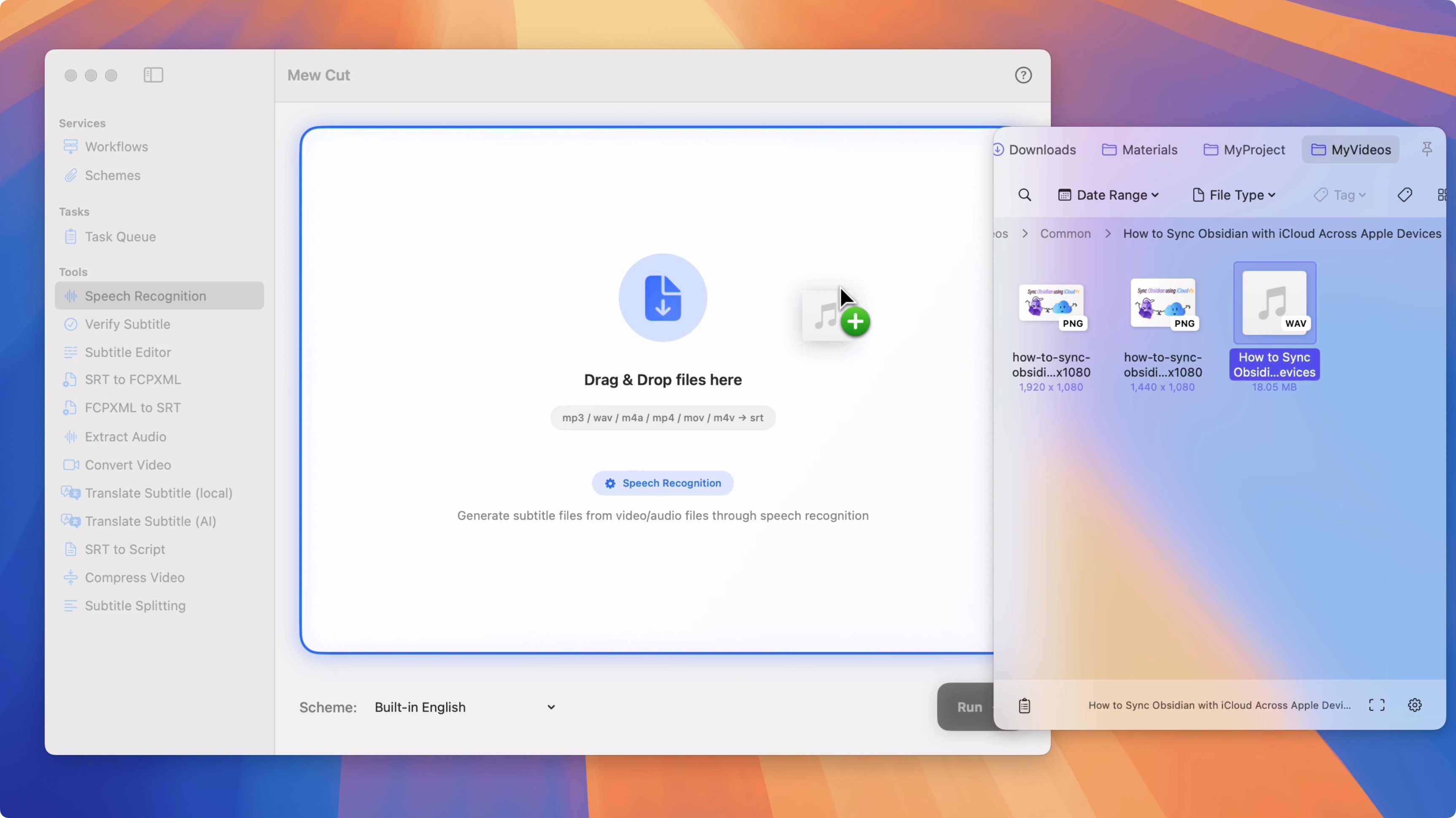
Drag and drop your audio or video files
-
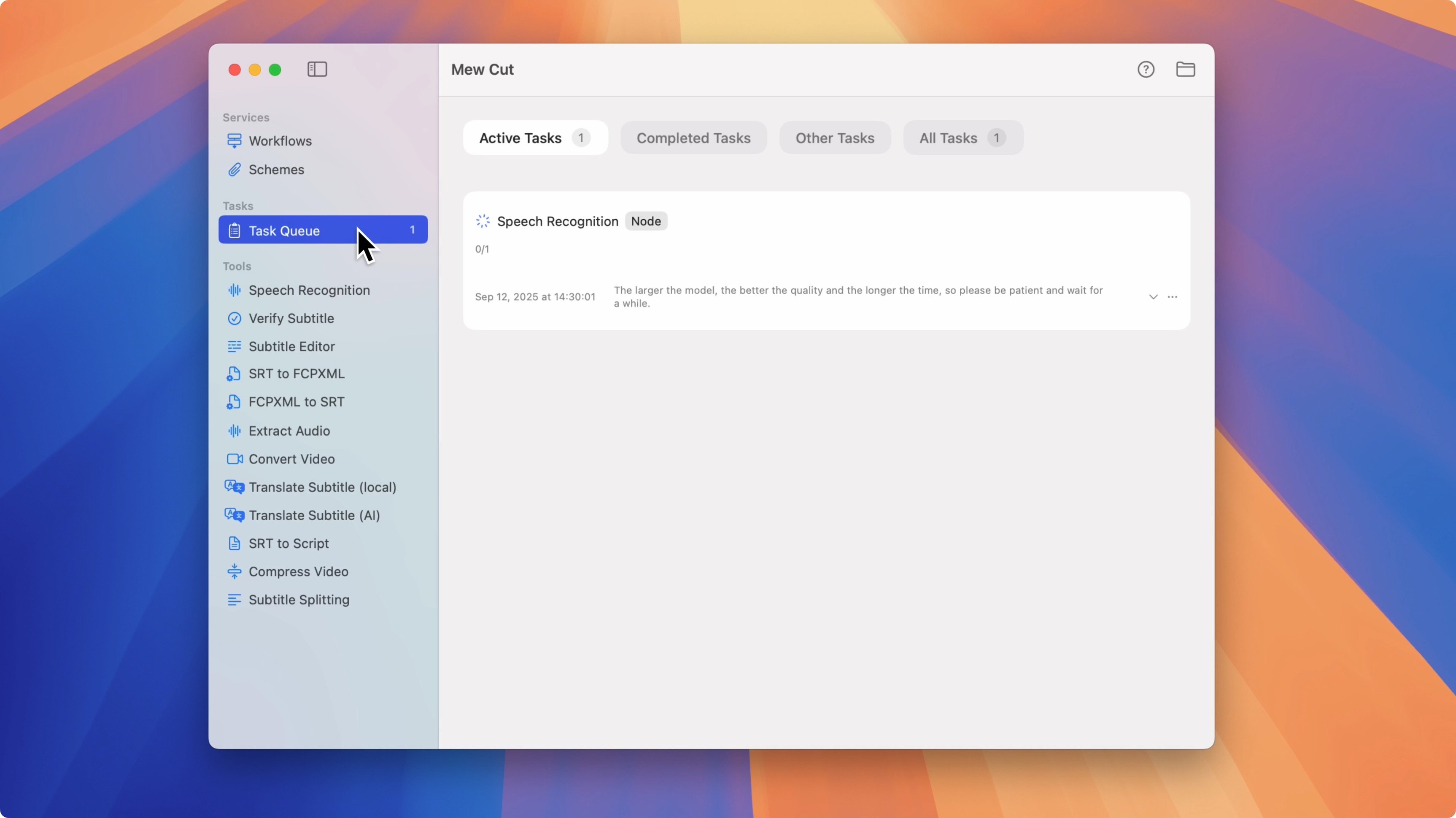
Click Start; your SRT files appear in the Task Queue when finished
What you get
- Recognition runs on your Mac; nothing is uploaded
- Drag in multiple files to generate subtitles at once
- Export standard SRT for editors and platforms
- Built-in English and Chinese schemes, plus custom presets
- Use built-in models, or download more as needed
- Pair with subtitle verification and sentence segmentation when you need cleaner results
Supported languages
English, Chinese, German, Spanish, Russian, French, Japanese, Korean, Portuguese, Arabic, Italian, and more.
Models and presets
Built-in models
Built-in models run locally on macOS. Results are usually stronger when you follow with verification and sentence segmentation.
Download more models
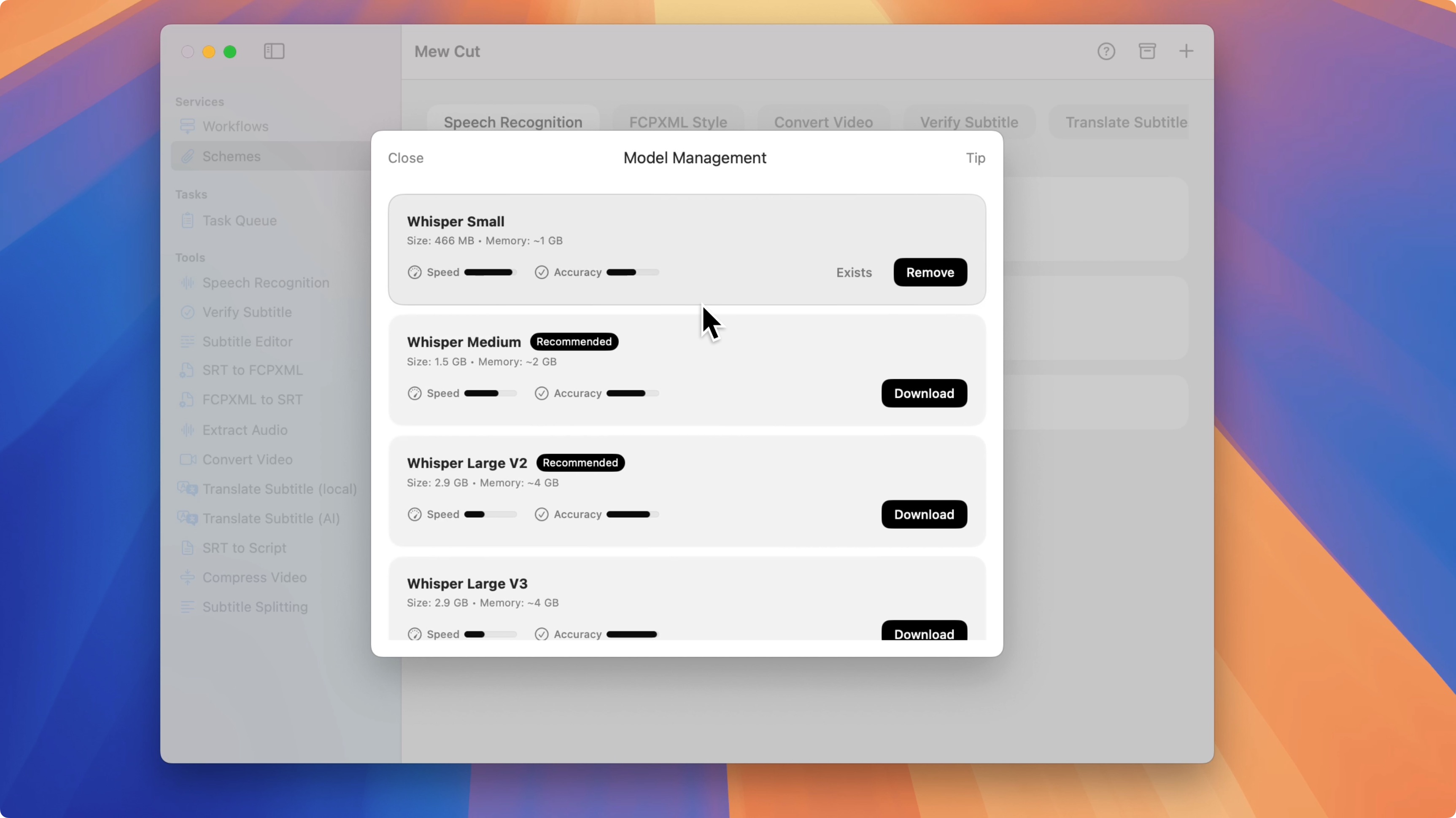
Use the built-in downloader to get additional models, then create a matching preset and select it when generating subtitles.
FAQ
-
What formats can I subtitle on Mac?
Common audio and video formats. Output is SRT. -
Does it require the internet?
No. Recognition runs locally on macOS. -
Can I tune accuracy vs. speed?
Yes. Choose different models or create custom presets. -
Can I review and refine subtitles?
Yes. Use the verification and sentence segmentation steps.